
Getting started and operating guide
Getting started with
AI Accounts Payable Assistant
1. Install and set up the AI AP assistant
Set up AI Accounts Payable Assistant: install Laiye Worker, add the AI AP Assistant that is already built in. Then try it end to end with the sample pages.
Check your computer
Windows
Windows 10 or later, 64-bit x64. Per-user installation; administrator rights are not required.
macOS
Apple silicon M-series Mac with macOS 12 or later. The current release does not include an Intel build.
Network and Space
Stable internet connection. Allow at least 1 GB free space for installation and updates, plus space for caches and logs.
01
Download & install Laiye Worker
Download for macOS →Download for Windows →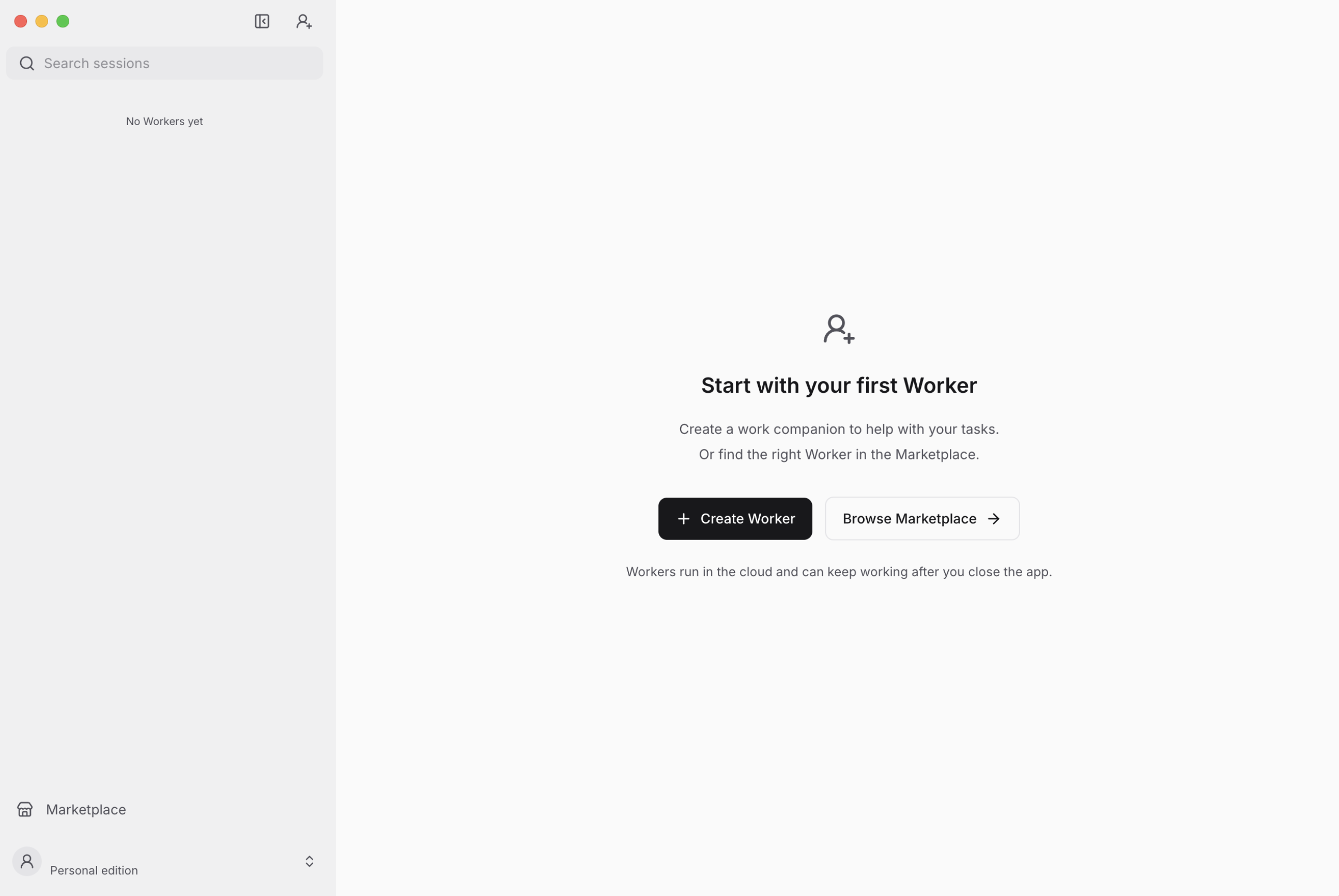
02
Add AI Accounts Payable Assistant
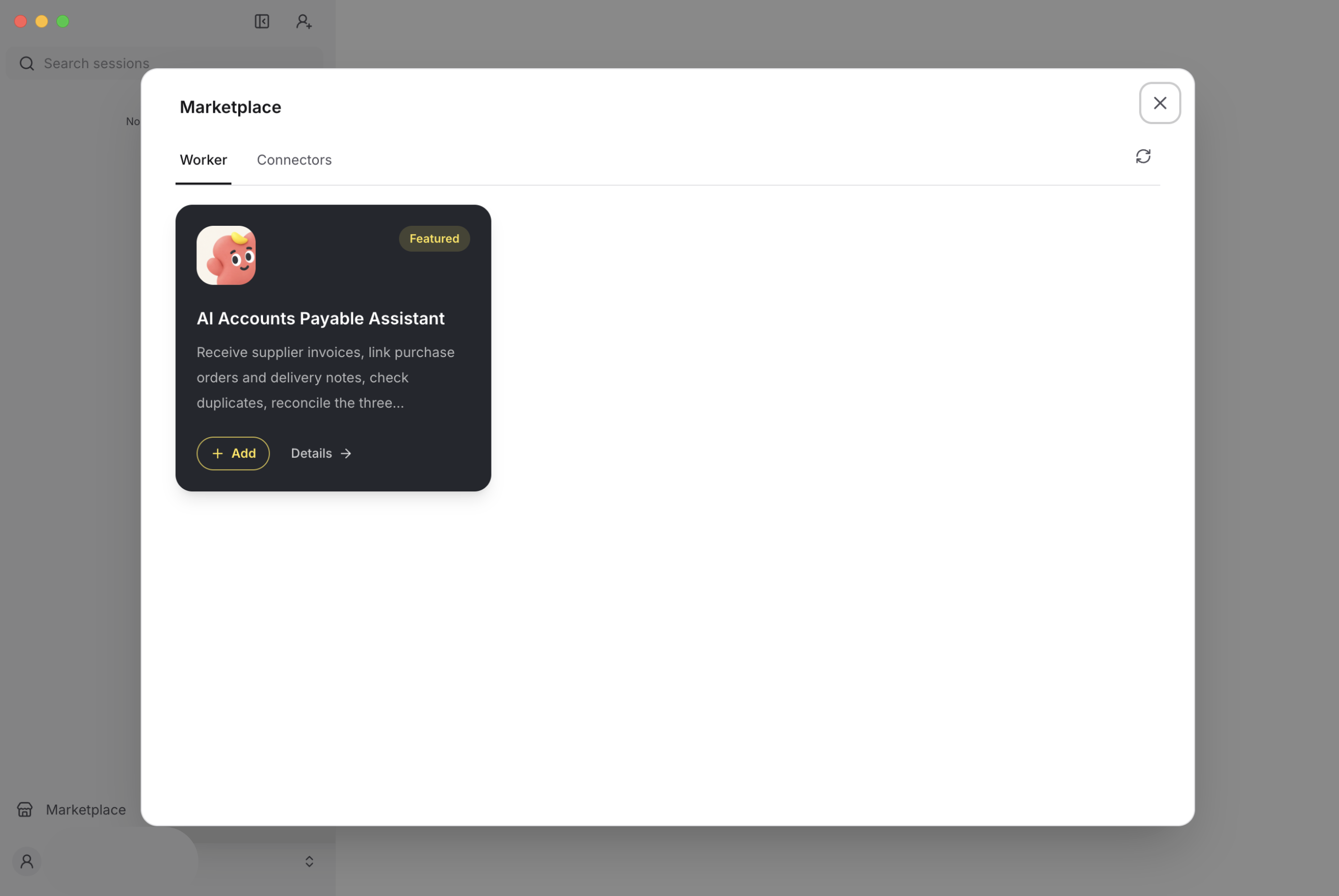
2. Run your first sample
03
Set up AI Accounts Payable Assistant
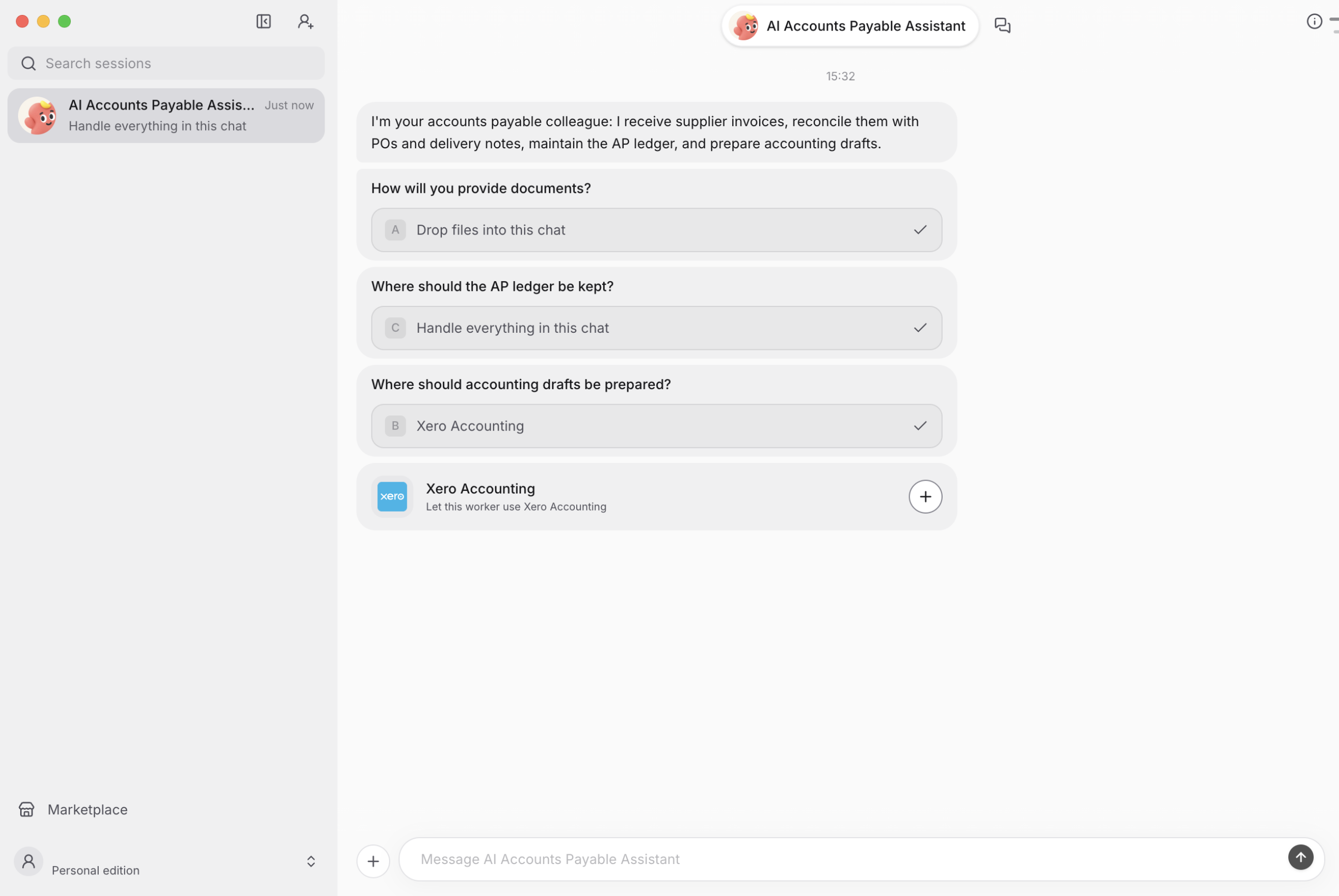
Use these first-run choices
The assistant asks five working-preference questions and includes an ADP authorisation step between the finance-system and variance-tolerance questions. Follow the order below.
Step
Question or step
Recommended for the sample
1
Document source
Choose “Drop files into this chat”.
2
AP ledger
Choose “Handle everything in this chat”.
3
Finance system
Choose “Prepare accounting drafts only”. Selecting Xero or QuickBooks instead starts its required connection setup.
3a
ADP authorisation
Use the ADP connection card, or explicitly choose Not now / configure later.
4
Variance tolerance
Keep the default: unit-price differences up to 1% pass when quantities match.
5
Daily AP brief
Choose “Keep it paused”.
Complete one question at a time
When you select a connected business system, finish its connection card and any target checks before continuing. A recommended option is not selected until you submit it.
For a future Google Sheets ledger, the assistant asks for an existing spreadsheet and worksheet, or proposes a new AP Ledger and AP Cases worksheet. It obtains agreement before creating a new ledger and verifies access before claiming it is ready.
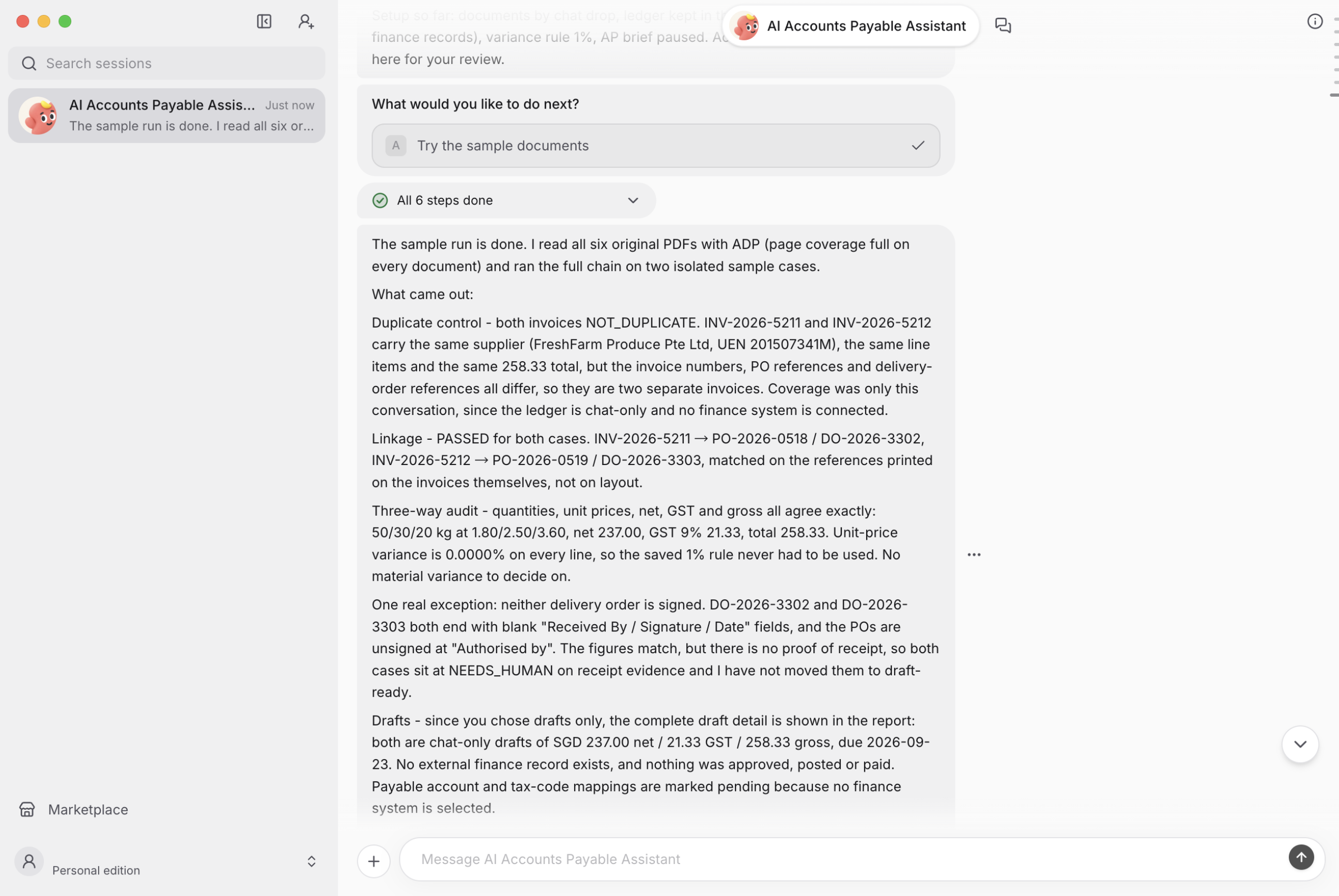
The “Try the sample documents” activity uses separate sample cases in the current conversation. It does not query or modify real ledgers or finance systems, even if those systems have already been connected. Use “Change settings” later to connect your business systems.
Finish setup and start the sample
📄
Try it with the built-in sample documents
This template offers QuickBooks, Xero Accounting, or drafts only. AutoCount is not an onboarding option in template 1.2.13.
3. Process your own documents
For a first real case, upload the invoice,related purchase order, and delivery note in chat. This lets you evaluateextraction and matching without authorizing mailbox access. If a document is missing, review the resulting exception rather than treating the case ascomplete.For live connected processing, update the working preferences with the assistant and authorize only the connectors you select. Check the account and target organization on each connection card.
Gmail
Google Sheets
ADP
Authorise the current Worker through its ADP connection card, or explicitly defer.
Xero / QuickBooks
Review access before starting live intake
• Verify the connected mailbox and intended document source.
• Verify the ledger destination and accounting organisation.
• Read the access requested by each connection card. Ask support if the scope is unclear.
• Confirm the intended intake and ongoing-processing behaviour with the assistant before selecting “Start with real documents”.
Live processing can read connected email, create ledger records, and prepare accounting drafts. Treat testing against a production organisation as real activity. The sample activity stays isolated.
If you use a corporate network
Ask your IT administrator to allow worker.laiye.com for sign-in and cloud services, lw-res-global.laiye.com for installers and updates, and the account sign-in pages opened in your browser.
4. Understand the result
Read the result in this order: business outcome, required decision, then supporting evidence. Execution status and invoice readiness are separate.
Understand workflow results
These result names are defined in the template instructions. The assistant may explain them in ordinary language; every reply does not have to display a literal status code.
NOT_DUPLICATE
No duplicate was found within the sources actually checked. A chat-only sample does not search your live Xero organisation.
PASSED
Read which stage passed. Passed linkage permits the audit to begin; an audit passes after applicable checks pass or exceptions are explicitly resolved.
NEEDS_HUMAN
A person must review an unresolved issue before the case can move forward.
DRAFT_ONLY
The complete draft and audit conclusion are shown in chat or the report. No external finance record exists.
DRAFTED
One external draft exists and required fields have been read back and matched to the confirmed preview. The result includes the record reference; it has not been approved, posted, or paid.
Read progress separately
The client may show “All N steps done”, where N is the current checklist’s step count. This is execution progress, not a fixed six-stage AP status or proof that an invoice passed audit. Read the findings for unresolved exceptions.
Example from the supplied sample
FreshFarm Produce Pte Ltd has an invoice total of SGD 258.33: SGD 237.00 before tax plus SGD 21.33 GST. The sample result shows matching quantities and prices, but missing receiving signatures on the delivery notes. The assistant flags the missing receipt evidence for human review.
Check where the output exists
• Chat-only mode: findings and draft previews are shown in the conversation. The sample also delivers trial-run-report.md.
• Live mode with Google Sheets: a case can be written to the agreed AP ledger. This does not mean a Xero bill was also created.
• Xero connected: review the creation result, then verify the saved bill in Xero. A proposed record in chat is not proof of creation.
5. Review drafts and ongoing work
Check the Xero setup
Before creating a bill, confirm the target organisation, supplier, transaction currency, account code, tax rate, and whether line amounts are tax-inclusive or tax-exclusive. Use settings appropriate to your own invoice and organisation.
For the supplied Singapore sample, use SGD and an applicable 9% GST on Purchases rate. Have an active Expense or Cost of Goods Sold account code available. Example codes in a guide are not a substitute for your organisation’s chart of accounts.
The sample supplier is FreshFarm Produce Pte Ltd. Review how it maps to your target organisation’s supplier record. If a supplier, account, or tax mapping is missing, the assistant asks for the missing information before offering external creation.
Review before confirming creation
• Supplier, invoice number, purchase-order reference, invoice date, and due date.
• Currency, line items, quantities, unit prices, account codes, tax treatment, and total.
• Duplicate-check sources and any potentially related bills.
• Missing signatures, receipt evidence, quantity differences, or price variances.
The assistant presents the proposed accounting record and asks for confirmation and any missing account-code or tax information. Resolve the audit exceptions before confirming an external write. It repeats duplicate control immediately before writing. If you are not ready, keep the result as a chat draft.
Verify the saved bill
After the assistant reports creation, open the selected Xero organisation and check Business > Bills to pay > Draft. Verify the supplier, invoice number, amount, and DRAFT status against the result. If the bill is missing, check section 6 before asking for another creation attempt.
The assistant reports DRAFTED only after reading back and matching the required fields. If a write fails or readback differs, it reports the exception; do not treat an uncertain create response as success. It never approves, posts, or initiates payment.
Understand ongoing work
Enable the daily AP brief only when you want a digest of new documents and pending decisions. Confirm its timing with the assistant. Pausing the brief controls the digest; do not assume it also stops document intake.
Cloud tasks can continue after you close or quit the desktop app. Before leaving live work running, confirm its scope and how to pause it. If the pause behaviour is unclear, contact support before enabling unattended processing.
Troubleshooting & support
Cannot install or update
Check free disk space and permissions for the installation folder.
Browser does not open
Repair the default browser and HTTP/HTTPS link handlers, then retry sign-in.
Session expired or access denied
Sign in again with the intended account and workspace. Check workspace membership with your administrator.
Workers will not load
Check internet, proxy, and firewall access, then use Retry.
AP ledger not created
Check Sheets authorisation, the agreed spreadsheet and worksheet, and whether you agreed to create a new ledger. A connected account alone does not establish a ledger destination.
ADP setup is waiting
Finish the current Worker’s connection card and verification, or explicitly choose to configure later. Closing the card alone does not let setup continue.
Unexpected duplicate or variance
Check invoice number, supplier, searched sources, and the configured tolerance. The default 1% rule applies to unit-price variance when quantities match.
Gmail connection card missing
Re-select Gmail as the document source in the preference flow.
Need help?
Email mkt@laiye.com for assistance. You can also use the Laiye website chatbot or the official Discord community.
Trial and subscription
Check the trial duration, usage allowance, subscription price and currency, renewal terms, and data-retention period in your current trial offer or in the product before accepting an upgrade. Contact support if any term is unclear.
Data and access
Workers run in the cloud. Live integrations use the credentials or OAuth access you authorise. The platform describes encrypted communications, isolated execution, access controls, and operational monitoring. For specific data-location, retention, access-revocation, or compliance requirements, obtain the applicable service and privacy terms before connecting business data.
When you contact support, include
• The app version and operating system.
• The step that failed and the exact error message.
• Any Diagnostic ID or request ID shown in the app.
• The exported diagnostics file, if available.
The diagnostic export is sanitised and excludes conversation text, attachments, credentials, and local file contents. Review any description or files you add separately before sending. You can also open Help & Feedback > Report an issue and follow the reporting flow.
Version context — updated 19 October 2026. Button labels and availability may vary by release.
Ready to try AI Accounts Payable Assistant?
Download on desktop — supports macOS 12+ or Windows 10+. No local runtime required.